 Coming soon
CallMinder™ for the Icom IC-7760
Helps you manage station identification and stay compliant
You remain responsible for FCC station identification.
Notify me when CallMinder launches
Requirements
- Icom IC-7760This edition checks the radio model at startup and runs only on an IC-7760.
- Windows 10 or 11
- USB connectionBetween the PC and the radio.
- Call sign recorded in the radio's Voice TX MemoriesFor example, "This is KB5XYZ."
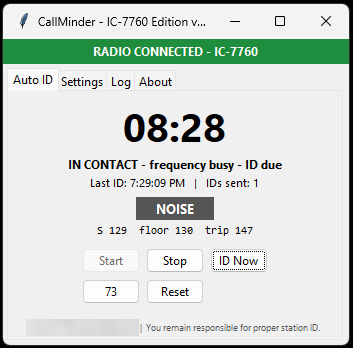
See your ID status
A countdown to your next ID and the radio connection status stay in view while you operate.
Use your radio's recordings
Works with the IC-7760's Voice TX Memories, so your ID plays from the recordings already in your radio.
Keep ID controls close
ID Now, 73, and Reset are together in one window.
You remain responsible for identifying your station and operating it correctly. Monitor the radio and ID timing, and identify manually whenever needed.
See it in action
How it works
Your IC-7760 can store short voice recordings ("Voice TX Memories"), like "This is KB5XYZ." CallMinder connects to the radio's USB port and tells the radio when to play them. The audio stays in the radio, so there's no audio wiring and no sound levels to adjust.
How CallMinder decides when to ID
This flowchart shows each yes/no check CallMinder makes to decide when to play your station ID.


More details
- Counts down to your next ID while you operate and can have the radio play your recorded ID when it comes due.
- Can give an early ID in slow group nets, before a long wait.
- Is designed to wait while the frequency is busy. It can't hear everything, so keep listening yourself.
- Shows an "ID DUE, unkey now" warning with a beep if an ID comes due while you're transmitting.
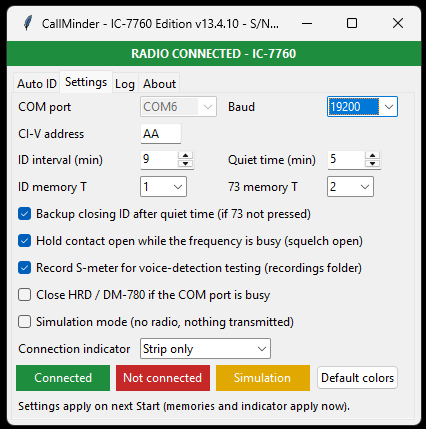
- Shows whether it's talking to your radio: green for connected, red for not answering.
- Tries to reconnect if the USB link drops (watch the connection status), and keeps a daily log you can review.
- Includes buttons for ID Now, a 73 sign-off, and Reset.
Your responsibility
CallMinder is a helper, not a replacement for the control operator. You remain responsible for identifying your station and operating it correctly. Monitor the radio and ID timing, and identify manually whenever needed.
Is CallMinder right for my station? IC-7760 setup notes CallMinder FAQ Free station ID timer
More radios coming
Editions for other popular radios are in development. Each edition is licensed for one radio model.
Availability
CallMinder is not on sale yet. Want to know when it launches? Notify me when CallMinder launches.
Before you buy, please read the CallMinder License Agreement. See also our Terms, Refund Policy and Privacy Policy.